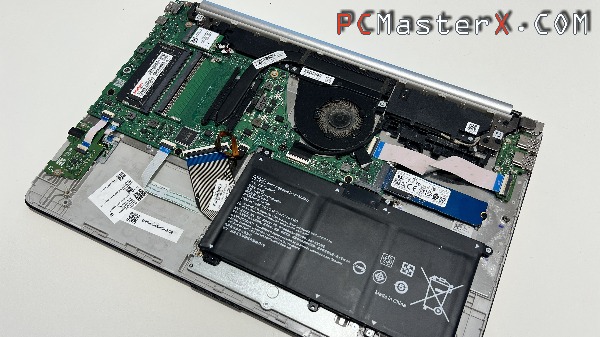
Is your HP Notebook 15s starting to run dangerously hot, with the fan sounding like a jet engine ready for takeoff? It might be time for some routine maintenance. Replacing the dry thermal paste and cleaning out accumulated dust can drastically lower your temperatures and restore your laptop's performance.
The good news is that you can easily do this service yourself at home. Plus, while you have the laptop open, you can seamlessly upgrade other internal components like the RAM, SSD, battery, or even install a much faster Wi-Fi card.
In this guide, we will walk you through the entire disassembly and maintenance process for the popular HP 15s-fq series (including models like the 15s-fq1000, 15s-fq5304nz, 15s-fq5185tu, 15s-fq1705nz, and any other model utilizing the 15s-fq1xxx chassis).
🛠️ Tools You Will Need
Before getting started, make sure to gather the following:
A small Phillips screwdriver (Ph0 or Ph1)
A plastic prying tool or an old credit card to open the case
Isopropyl alcohol (90%+ concentration) and cotton swabs or a lint-free cloth
High-quality new thermal paste
This video shows how to open and clean the HP 15s-fq series:
📋 Step-by-Step Thermal Paste Replacement Guide
⚠️ Important Reminder: Only replace the thermal paste if you are experiencing actual overheating or high temperatures, as it is not necessary for normal, healthy operation.
Step 1: Preparation and Safety
Shut down the laptop completely, unplug the charger, and ensure the workspace is clean and static-free.
Step 2: Accessing Hidden Screws and Removing the Cover
Turn the laptop upside down. HP has hidden some of the screws on this series! You must carefully peel off the two rubber feet strips on the bottom to access all of the hidden base screws. Remove all the screws, then use your plastic pry tool to gently release the clips along the edge of the casing to lift off the base cover.
Step 3: Disconnect the Battery!
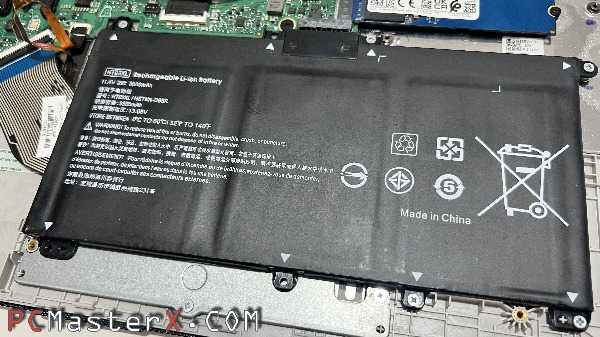
As soon as the cover is off, your very first step must be to unplug the battery cable from the motherboard. This cuts off all power and prevents accidental short-circuits while you work.
Step 4: Removing the Heatsink and Fan
Unplug the fan cable, unscrew the fan assembly, and lift it out. Next, remove the screws securing the copper heatsink over the CPU. Carefully lift the heatsink off the processor.
Step 5: Deep Cleaning
Use a cotton swab or lint-free cloth dipped in isopropyl alcohol to clean the old, dry thermal paste off both the CPU chip and the copper surface of the heatsink. Clean until the surfaces are perfectly shiny. Take this opportunity to also blow out any dust trapped in the fan blades and the exhaust vents.
Step 6: Applying New Paste and Reassembly
Apply a small, pea-sized amount of new high-quality thermal paste directly onto the center of the CPU. Do not over-apply. Place the heatsink back on top and tighten the screws in a diagonal (crosswise) pattern to ensure even pressure across the chip. Reconnect the fan, plug the battery back in, and snap the base cover back into place.
🚀 Bonus Upgrades You Can Do Simultaneously
While you have the chassis open, it is the perfect time to upgrade your hardware components:
RAM Memory: The motherboard supports 16 GB DDR4-2666 to 3200 SDRAM. If you currently have less, upgrading your memory will provide a noticeable boost in multitasking performance.
SSD Storage: Running out of storage space? You can easily swap your current drive for a larger, high-speed PCIe NVMe M.2 SSD.
Battery: If your laptop no longer holds a charge, replacing the battery takes less than two minutes once the back cover is removed.
🌐 Pro Upgrade: Future-Proofing with Wi-Fi 7!
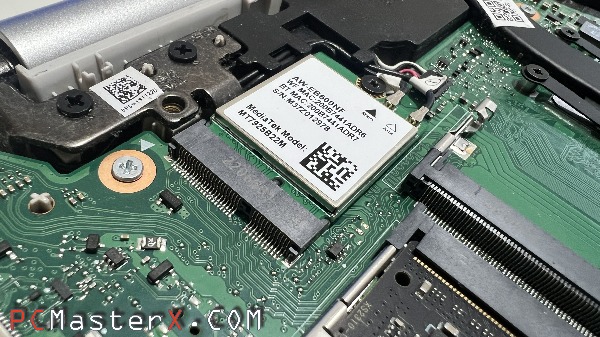
If your wireless connection feels slow or drops frequently, the motherboard natively accommodates upgraded wireless cards. Here is a breakdown of tested Wi-Fi 6 and Wi-Fi 7 options that work flawlessly on this chassis:
Intel BE200NGW (The Top Choice): This is by far the best upgrade, offering full Wi-Fi 7 support on the 6GHz band with a massive 320Hz channel width. It delivers incredible speeds and stability.
MediaTek MT7925B22M: Another excellent Wi-Fi 7 alternative that supports the 6GHz band, running at a 160Hz channel width.
Realtek RTL8852BE & MediaTek MT7921: Solid, reliable Wi-Fi 6 cards that are perfect for standard high-speed home networking.
🐧 A Quick Note for Linux Users
For developers, students, or anyone looking for a snappy alternative to Windows, the HP 15s series is an excellent Linux machine.
Hardware configurations featuring the Intel Core i5-1035G1 or i3-1215U processors, coupled with Intel UHD Graphics, run exceptionally well "out-of-the-box" on Linux Ubuntu 22.04.2 LTS. System drajvers, display settings, and even the upgraded Wi-Fi cards are recognized seamlessly without tedious troubleshooting.
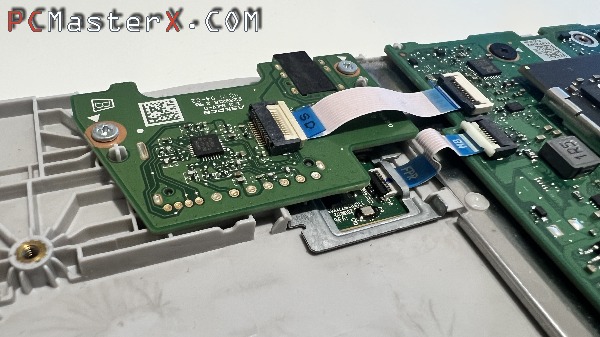
Model that has a fingerprint scanner:
Compatible Motherboard Markings for Reference:
If you are sourcing replacement parts, this guide applies to motherboards marked with: DA0P5NMB8E0 REV: E, DA0P5DMB8C0 REV: C, DA0P5HMB8E0 REV: E, DA00P5MB6D0, DA0P5HMB8F1, and DA0P5HMB8J0.
Good luck with your laptop maintenance! Let us know in the comments below if you managed to drop your temperatures—shaving off 10-15°C can add years to your laptop's lifespan.