
How to Fix Corrupted Firmware on a YeeStor YS9082HP SSD Controller. Is your SSD completely unresponsive, showing the wrong capacity, or locked in a bricked state? A corrupted firmware is often the culprit behind a seemingly dead solid-state drive.
In this comprehensive guide, we will walk you through the process of resetting and reflashing the firmware on a YeeStor YS9082HP controller. For this demonstration, we are using a Goldenfir D800 480GB SSD, which comes equipped with this specific YeeStor controller.
This video shows: In this video, I will show you how to reset and re-flash the firmware on a YeeStor YS9082HP SSD Controller.
Prerequisites & Tools Needed
Before getting started, make sure you have the following hardware ready:
- A USB-to-SATA adapter to safely connect the open SSD to your computer.
- A jumper (or a pair of metal tweezers) to short the ROM pins.
- The correct MPTool software matching your exact controller and NAND flash memory.
⚠️ CRITICAL WARNING: This mass production flashing procedure will permanently erase all data on your SSD. Ensure you have accepted this data loss before moving forward.
Step 1: Identify Your Controller and Memory Chips
The most reliable way to verify your SSD's internals is to take it out of its enclosure and look directly at the hardware.
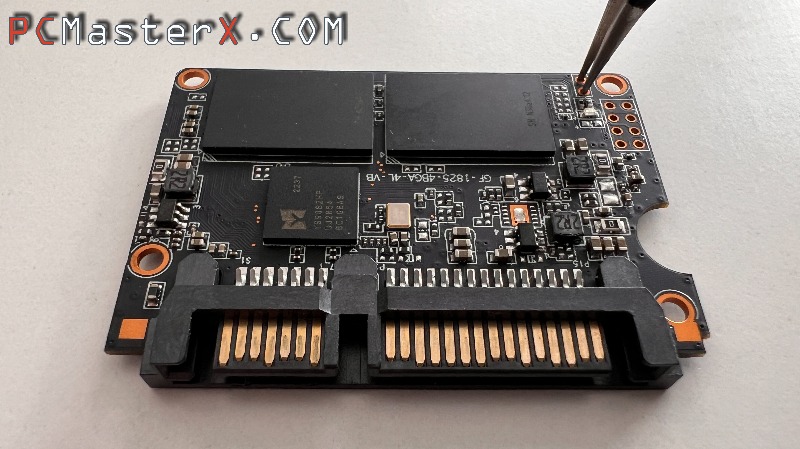
- Carefully open your SSD casing to expose the printed circuit board (PCB).
- Read the exact markings on the controller chip to ensure it says YS9082HP.
- Take note of the markings on the flash memory chips, as you will need this information later.
Step 2: Locate the ROM Pins & Force ROM Mode
To flash new firmware, we must force the controller into safe mode (also known as "ROM mode" or flashing mode).
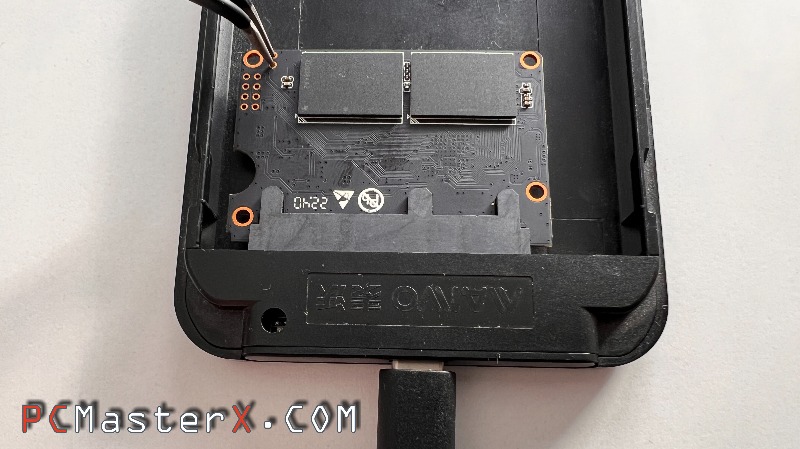
- Locate the designated ROM pins on your SSD’s PCB.
- Place a jumper over the ROM pins to short them.
- Plug your USB-to-SATA adapter into the computer with the jumper still attached.
- Wait approximately 3 seconds, then carefully remove the jumper while leaving the drive powered on.
Step 3: Verify Flashing Mode in Windows
Before opening the software, verify that Windows recognizes the drive in its low-level service state.
- Right-click the Windows Start menu and open Disk Management.
- Look for a new drive listing. When the YeeStor YS9082HP controller is successfully running in flashing mode, it will register with a hardcoded capacity of exactly 2 GB.
Step 4: Configure the YeeStor MPTool (Mass Production Tool)
Now you need to use the dedicated software tool to map your NAND configuration and target firmware.
MPTool ---> https://www.usbdev.ru/files/silicongo/ys9082hpmptools/
- Launch the MPTool executable. It should automatically detect your SSD in ROM mode.
- Navigate to the Parameter tab and click Edit Config.
- When prompted for a password, leave the field blank and click OK.
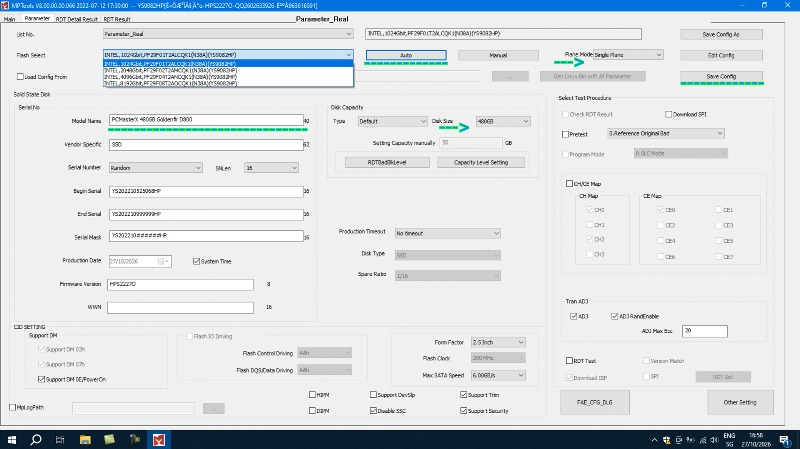
- Click on Flash Select to identify the memory architecture. Double-check that the auto-detected memory matches the physical markings on your SSD chips.
- (Optional) You can customize your SSD's model string name and serial number fields here.
- Important Capacity Fix: Set your correct drive size in the Disk Capacity section. If the capacity doesn't show up correctly, manual entry isn't enough—you must manually change the Plane Mode setting from Multi Plane to Single Plane.
- Click Save to lock in your configuration.
Step 5: Flash the Firmware
With everything configured, you are ready to rewrite the firmware block.
- Return to the main tab of the MPTool.
- Click Start to initiate the firmware flashing sequence.
- Wait for the progress bar to complete. The tool will display a success notification once the drive is fully restored.
Step 6: Initialize, Format, and Benchmark
Your drive now has working factory firmware, but it needs a clean partition layout to be usable in Windows.
- Safely unplug your USB adapter from the PC and plug it back in to power-cycle the controller.
- Reopen Disk Management. Windows will prompt you to initialize the disk (choose MBR or GPT). Create a new simple volume and format it.
- Open CrystalDiskInfo to verify the health status, temperature, and fresh internal parameters of your drive.
- Run a speed test using CrystalDiskMark to ensure your read and write performance matches factory specifications.
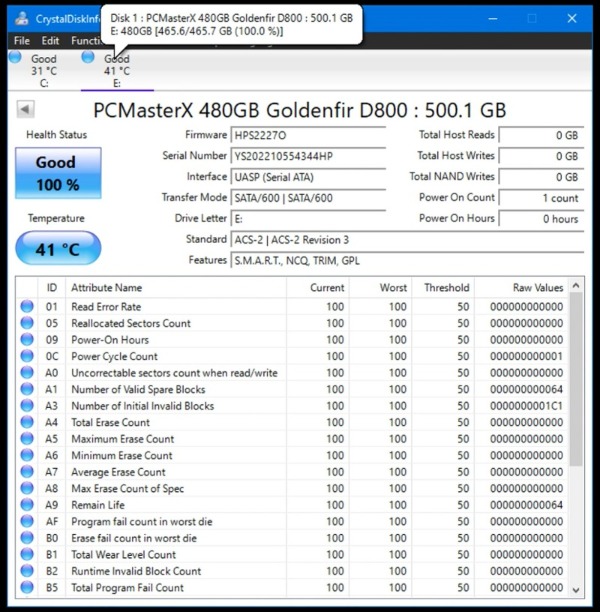
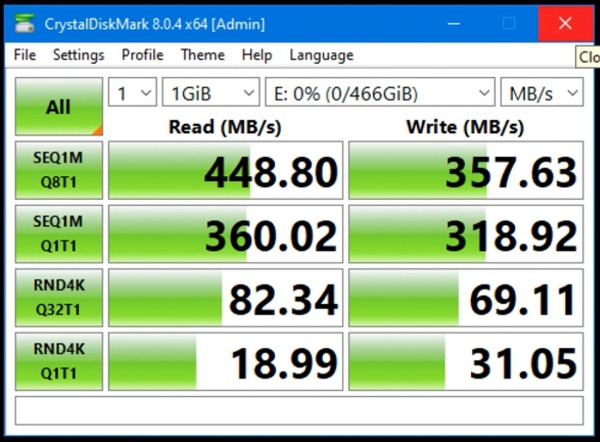
You can now disconnect the SSD from your SATA adapter, snap it back into its protective enclosure, and use it as a completely revived storage drive!
...